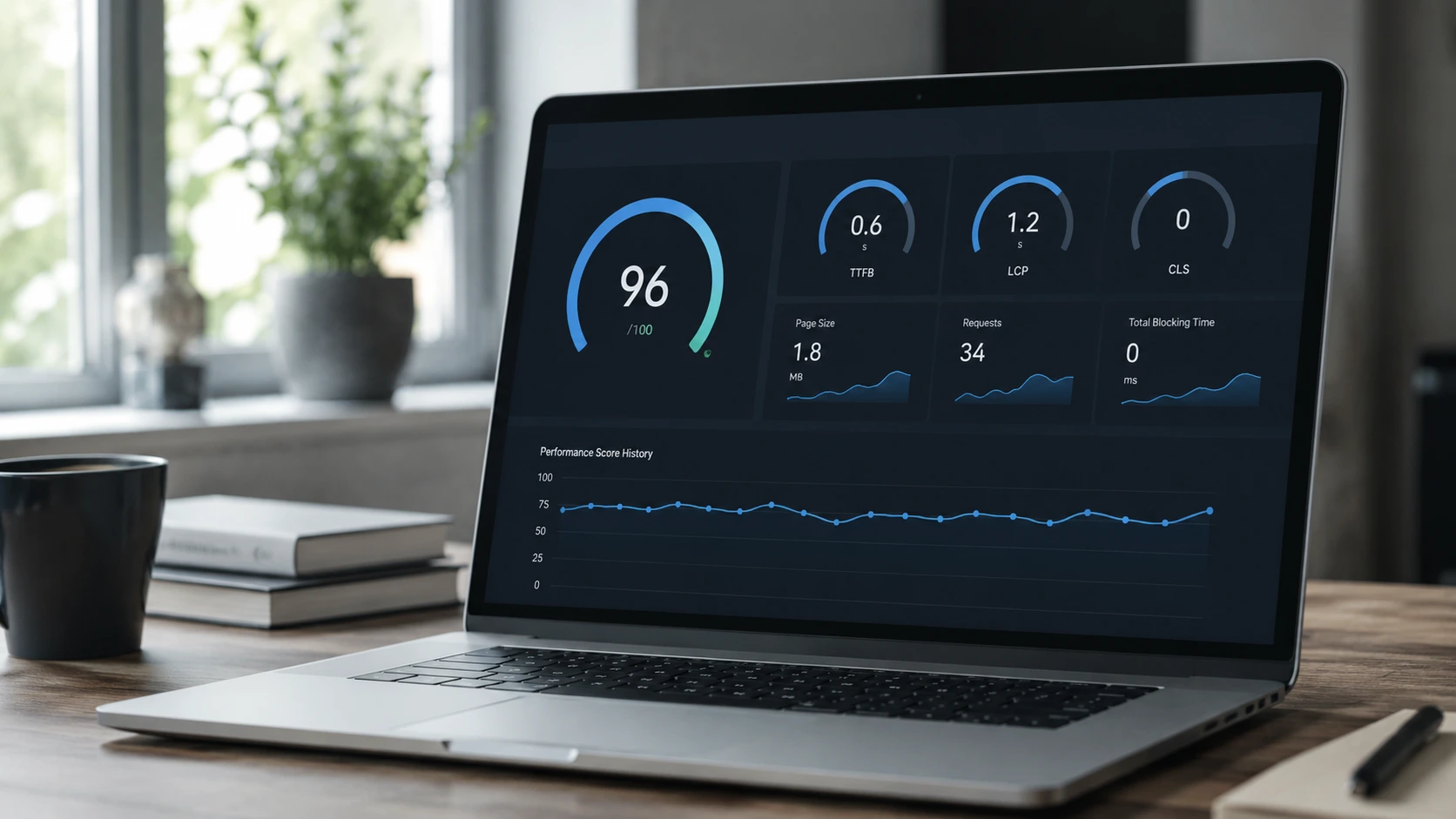
Why Website Speed Matters More Than Ever
Have you ever clicked a link and immediately closed it because the page took too long to load? You're not alone. Studies consistently show that the majority of users abandon a page if it doesn't load within three seconds. In today's digital landscape, website speed is not just a matter of convenience — it directly affects conversion rates, user satisfaction, and your visibility on Google.
Google officially factors page speed into its ranking systems through the Page Experience signal, and at the core of this system is a set of metrics called Core Web Vitals. If your website feels sluggish, there's a good chance one or more of these metrics is underperforming.
This article breaks down what Core Web Vitals are, how to measure them for free, what commonly causes slow websites, and the practical fixes you can apply right away.
Understanding Google Core Web Vitals: LCP, INP, and CLS
Core Web Vitals are a set of metrics that measure real-world user experience for loading performance, interactivity, and visual stability. Google highly recommends that site owners achieve good Core Web Vitals scores for success in Search and for delivering a great user experience overall.
There are three Core Web Vitals metrics:
1. Largest Contentful Paint (LCP) — Loading Performance
LCP measures how long it takes for the largest visible content element on the screen — such as a hero image or a main text block — to finish rendering. It represents the perceived loading speed from a user's perspective.
LCP Thresholds:
| LCP Value | Status |
|---|---|
| 0 – 2.5 seconds | ✅ Good |
| 2.5 – 4.0 seconds | ⚠️ Needs Improvement |
| Over 4.0 seconds | ❌ Poor |
Pages with large above-the-fold images or heavy featured banners often struggle to achieve a good LCP score.
2. Interaction to Next Paint (INP) — Responsiveness
INP replaced the older First Input Delay (FID) metric in 2024. Rather than measuring only the first interaction, INP captures the latency of all user interactions throughout a page's lifecycle — including clicks, taps, and keyboard inputs — making it a far more accurate reflection of a page's overall responsiveness.
INP Thresholds:
| INP Value | Status |
|---|---|
| 0 – 200 ms | ✅ Good |
| 200 – 500 ms | ⚠️ Needs Improvement |
| Over 500 ms | ❌ Poor |
3. Cumulative Layout Shift (CLS) — Visual Stability
CLS measures how much a page's content shifts unexpectedly during loading. Picture this: you're about to click a "Read More" button, but an ad suddenly loads above it and pushes everything down — causing you to click the wrong element entirely. That's the kind of experience CLS is designed to penalize.
CLS Thresholds:
| CLS Value | Status |
|---|---|
| 0 – 0.1 | ✅ Good |
| 0.1 – 0.25 | ⚠️ Needs Improvement |
| Over 0.25 | ❌ Poor |
How to Check Your Page Speed with PageSpeed Insights
Google PageSpeed Insights (PSI) is the go-to free tool for analyzing your web page's performance. PSI provides two types of data:
- Field Data: Real-world data collected from actual users visiting your site via the Chrome User Experience Report (CrUX) over a trailing 28-day period. This reflects genuine user experiences across a variety of devices and network conditions.
- Lab Data: A simulated page load powered by Lighthouse under controlled conditions. Useful for diagnosing specific performance bottlenecks in a reproducible environment.
How to Use PageSpeed Insights:
- Go to pagespeed.web.dev
- Enter the URL of the page you want to analyze
- Click Analyze
- Review the scores and detailed metrics for both Mobile and Desktop
- Scroll down to the Opportunities and Diagnostics sections for specific, actionable recommendations
PSI categorizes user experiences into three buckets — Good, Needs Improvement, and Poor — based on established thresholds. For a page to pass the Core Web Vitals assessment, the 75th percentile values of all three metrics (LCP, INP, and CLS) must fall in the Good range.
Pro Tip: Beyond PSI, the Core Web Vitals report in Google Search Console lets you monitor your entire website's performance across all URLs at once — far more efficient than analyzing pages one by one.
Common Causes of a Slow Website
Before you can fix a problem, you need to understand what's causing it. Here are the most common culprits behind slow website performance:
1. Oversized, Unoptimized Images
Unoptimized images are the single most common cause of poor page speed. Uploading a 5MB camera photo directly to your website without compression puts an enormous strain on loading time, especially for LCP.
2. Excessive Third-Party Scripts
Every analytics plugin, live chat widget, ad pixel, and heatmap script you add introduces additional network requests and JavaScript execution time. These third-party scripts can significantly increase both load time and INP, since the browser has to process more code before it can respond to user interactions.
3. Render-Blocking JavaScript
JavaScript loaded in the <head> of a page blocks the browser from rendering any content until that script has been fully downloaded and executed. Users are left staring at a blank screen while the browser works through the queue. Deferring or minifying these scripts is one of the highest-impact fixes available.
4. Bloated, Unminified CSS
Large CSS files that haven't been minified force the browser to process thousands of unused style rules before it can paint the page, which directly delays LCP.
5. Slow Server Response Time (High TTFB)
Time to First Byte (TTFB) is the time it takes your server to begin sending a response after a request is made. A good TTFB should be under 800ms. A slow server means all subsequent metrics will suffer regardless of how well your front-end is optimized.
6. No CDN in Place
Without a Content Delivery Network (CDN), all visitors download your site's assets from a single origin server. If your server is geographically distant from the visitor, network latency alone can add hundreds of milliseconds to every page load.
7. Media Elements Without Defined Dimensions
Images and videos that don't have explicit width and height attributes are one of the leading causes of high CLS scores. The browser doesn't know how much space to reserve, so the layout shifts as elements load in and push other content around.
Quick Wins: High-Impact Fixes You Can Apply Today
Here are the most impactful optimizations you can implement right now:
Compress and Modernize Your Images
This is the biggest quick win available to most website owners. Switch to modern formats like WebP or AVIF, which offer comparable visual quality at a significantly smaller file size than JPEG or PNG. Tools like Squoosh, TinyPNG, or WordPress plugins such as ShortPixel and Imagify can automate this process.
Always specify width and height attributes on every <img> element to prevent layout shifts:
<img src="image.webp" width="800" height="600" alt="Descriptive alt text">
Implement Lazy Loading
Add the loading="lazy" attribute to images and iframes that are not visible in the initial viewport. This tells the browser to defer loading those assets until the user scrolls near them, dramatically reducing the initial page payload.
<img src="below-fold-image.webp" width="800" height="600" loading="lazy" alt="Description">
Important: Never apply lazy loading to images that appear above the fold. Deferring those will hurt your LCP score, not help it.
Minify CSS and JavaScript
Minification removes whitespace, comments, and redundant characters from CSS and JS files without altering functionality, reducing file sizes by 20–30%. In WordPress, plugins like WP Rocket or Autoptimize handle this automatically. For custom-built projects, bundlers like Webpack or Vite include this capability out of the box.
For JavaScript, use defer or async attributes to prevent render-blocking:
<!-- defer: Executes after HTML parsing is complete -->
<script src="app.js" defer></script>

<!-- async: Downloads in parallel, executes as soon as ready -->
<script src="analytics.js" async></script>
Enable Browser Caching and Use a CDN
Configure proper Cache-Control response headers so that returning visitors' browsers can serve static assets (images, CSS, JS) locally without re-downloading them from the server on each visit.
Pair this with a CDN like Cloudflare (which has a generous free tier) to distribute your assets across servers in multiple geographic locations, reducing latency for visitors worldwide and improving TTFB.
How Hosting Affects Your Website Speed: VPS vs. Shared Hosting
Optimizing your code and images will only take you so far if your underlying server infrastructure can't keep up. Hosting quality has a direct and significant impact on TTFB and overall page performance.
Shared Hosting
On shared hosting, a single physical server houses hundreds or even thousands of websites simultaneously. CPU, RAM, and bandwidth are all shared among them. When a neighboring site experiences a traffic spike, your site's performance can degrade as a result — a phenomenon often called the "noisy neighbor effect."
Shared hosting is a reasonable starting point for new websites with minimal traffic, but it becomes a significant bottleneck as a site grows.
VPS (Virtual Private Server)
A VPS allocates dedicated resources — CPU, RAM — to your website in a virtualized environment. While the physical server hardware is still shared, your resource allocation is guaranteed and isolated from other tenants. This results in consistently faster and more stable server response times.
VPS hosting is the right choice for business websites, e-commerce stores, and any site with growing or unpredictable traffic.
Side-by-Side Comparison
| Aspect | Shared Hosting | VPS Hosting |
|---|---|---|
| Cost | Lower | Higher |
| Performance | Variable, neighbor-dependent | Stable and consistent |
| Resources | Shared | Dedicated |
| Average TTFB | Higher | Lower |
| Best for | New sites, low traffic | Business sites, growing traffic |
| Server control | Very limited | Flexible |
If your Core Web Vitals remain poor after thoroughly optimizing your front-end assets, it's worth evaluating whether an upgrade to a VPS or managed hosting solution is the missing piece.
Conclusion
A slow website is not just a technical inconvenience — it's a direct obstacle to business growth. Frustrated visitors leave, and Google demotes pages that fail to deliver a good user experience. The good news is that most performance issues are diagnosable and fixable with a clear, methodical approach.
Start by auditing your current state with PageSpeed Insights. Identify which Core Web Vitals need the most attention — LCP, INP, or CLS. Then work through the quick wins: compress your images, enable lazy loading, minify CSS and JS, and evaluate whether your hosting is holding you back.
Page speed optimization is a long-term investment. Every incremental improvement compounds into a better user experience, stronger search rankings, and ultimately — more conversions for your business.